Vervoe’s anti-cheating tools help protect the integrity of your assessments while maintaining a positive candidate experience. Here’s how key features work and guidance on reviewing flagged candidates.
Plagiarism Detection
ChatGPT & Web-Based Plagiarism Detection
Geo-Location Flags
Prevent Pasting into Answer Fields
Full Screen Mode
Proctoring
Managing Flagged Candidates
Plagiarism Detection
Plagiarism detection is available for text-based questions and must be enabled per question in the Question Settings.
When enabled, Vervoe compares the first 500 words of candidate answers to the same question across the platform. If two or more candidates submit identical or very similar responses, a plagiarism flag is triggered.
How Flags Appear:
- Select Page: A plagiarism icon is displayed next to flagged candidates.
- Candidate Report Card: Click Review Answers to see detailed matches.
Important Notes:
- Flag resets: Extending a candidate’s deadline or resetting their assessment will remove existing plagiarism flags.
- Expected similarity: For questions likely to receive standardised answers (e.g., factual definitions), consider turning off plagiarism detection to avoid false flags.
- Default setting: Plagiarism detection is OFF by default and must be toggled ON manually in the question settings.
ChatGPT & Web-Based Plagiarism Detection
An optional add-on is available to detect plagiarism from external sources like Wikipedia or ChatGPT-generated content. These matches include a note indicating the source.
Note - this is a paid feature. Please contact your Account Manager or email sales@vervoe.com.
Geo-Location Flags
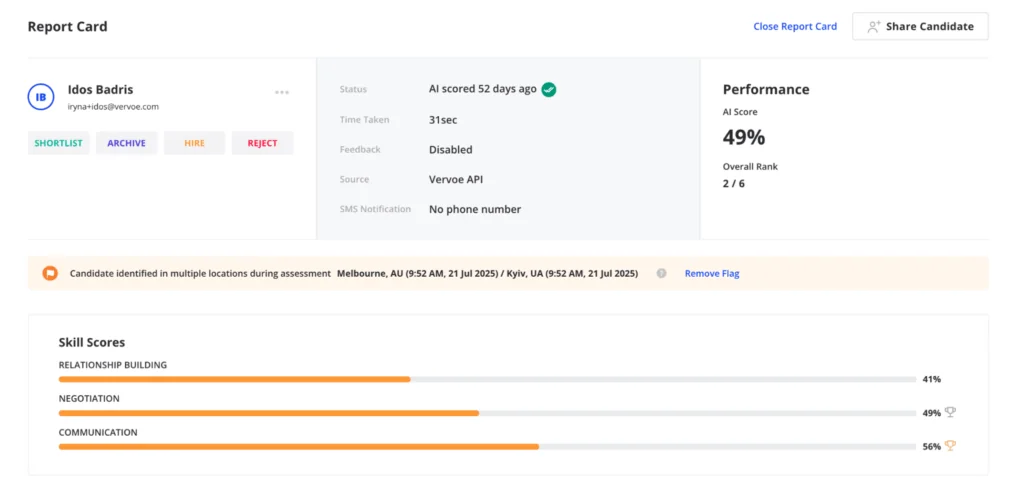
Candidates who complete an assessment from different cities within a 30-minute window (based on IP address) will be flagged.
How Flags Appear:
- On the Select Page and Candidate Report Card
- Flags show “Multiple locations detected” with the cities involved
Notes:
- VPN use or short-term travel may trigger flags.
- Switching devices in the same location is unlikely to trigger a flag.
- Resetting deadlines or assessments clears these flags.
Prevent Pasting into Answer Fields
You can prevent candidates from pasting content into Text, Numbers, and Simulation question types.
How to Enable:
- In the Create Tab, select relevant question(s).
- Go to Question Settings and toggle Prevent Pasting into Answer Fields.
Candidates will see an extra guidelines screen before starting the assessment. This discourages copying from external sources.
Full Screen Mode
Full Screen Mode helps prevent candidates from switching tabs or referencing unauthorised materials during assessments. When enabled, candidates must complete the assessment in full-screen view.
How to Enable:
- Go to Assessment Settings when creating or editing an assessment.
- Toggle Full Screen Candidate Experience to ON.
- Save your changes.
What to Know:
Candidates cannot submit or continue if they exit full-screen mode; a warning will display that they must return to full screen.
Full Screen Mode is automatically disabled for assessments that include QA or Marketing simulations, or questions with attached files or links, as these require exiting full screen.
Employer notifications for exits are not shown in version 1; review of behaviour is based on candidate compliance during the assessment.
Reviewing Flags:
Candidate report cards indicate whether a candidate exited full-screen mode during the assessment.
Proctoring
Proctoring allows employers to verify candidate identity by capturing still images from the candidate’s camera at random intervals during the assessment.
Note - this is a paid feature. Please contact your Account Manager or email sales@vervoe.com.
How to Enable:
Ensure the Proctoring feature is enabled at the account level in the admin panel.
On a per-assessment basis, toggle Real-Time Proctoring under Assessment Settings.
Candidates must consent to camera use before starting the assessment.
What to Know:
Images are captured at random intervals (approximately every 4–6 minutes).
No live video or audio is recorded; only still images are used.
Candidates who do not consent to camera access cannot proceed with the assessment.
Reviewing Flags:
Captured images appear on the candidate report card for manual review.
Use the images to verify candidate identity and check for inconsistencies.
Candidate Communication for Anti-cheating
All candidates will be presented with a clear guidelines screen outlining expectations. This helps reinforce assessment integrity and discourages the use of external sources.
Managing Flagged Candidates
Vervoe provides alerts for potential inconsistencies in candidate responses for your team to review. These alerts do not affect candidate scores, and your team is responsible for interpreting the data and deciding on next steps. Vervoe does not make hiring decisions or assess candidate honesty.
Below is a guide of suggestions your team can reference when assessing flagged candidates.
| Step | Action | Notes / Guidance |
|---|---|---|
| 1 | Consider Overall Fit | Review the candidate’s total score and suitability for the role. Investigation may not be necessary if the candidate is clearly not a fit. |
| 2 | Review Answers in Context | Compare flagged responses for similarities in phrasing, structure, and examples. Some similarities may be coincidental or standard practice. |
| 3 | Ask Follow-Up Questions | Ask candidates to explain their reasoning or approach to flagged answers via a follow up phone screen or interview. For technical or coding questions, have them explain step-by-step. |
| 4 |
Consider Patterns, Not Isolated Cases |
Look for repeated similarities across multiple questions. One flagged answer may be less concerning than a consistent pattern. |
| 5 | Document Your Review | Keep notes on your investigation process. This supports transparency and consistency across your team. |
| 6 | Decide Next Steps | Vervoe provides flagged data only. Your team is responsible for reviewing the information and determining appropriate follow-up based on your internal hiring policies. |
Removing Flags
If a flag was raised in error or appears justifiable, it can be removed from the Candidate Card.
Notes:
- Removed flags cannot be reinstated.
- New flags for other behaviours will appear separately.
- Each candidate is flagged only once per detection method.
Impact on Scores & AI Grading
- Flags do not affect candidate scores.
- Manual grading of flagged answers is excluded from AI training to maintain result integrity.